WEEK 2 FOLLOW-UP · ABOUT 20 MINUTES
From Excel to a VLE model comparison
Import a real CSV file from the supplied workbook, check one observation, compare two activity models, and reopen your saved work. Use the same synthetic dataset throughout.
The workbook has two tabs: Demo contains calculations and explanations; VLE_data contains the 19 observations to import. The separate CSV supplies that same observation table if you need a ready-to-use file.
0–3 MINUTES · PREPARE THE INPUT FILE
1. Inspect the workbook and save one worksheet as CSV
- Open lab08-demo.xlsx. Select VLE_data. Inspect A1:D20: four headers in row 1 and 19 data rows below them. Each row is one constructed equilibrium observation.
- The headers must be exactly
T,P,x1,y1. For this dataset, T is in K, P is in kPa, and x1 and y1 are mole fractions, not percentages. Keep units and explanatory text outside this table. - Keep VLE_data active. In desktop Excel, use File → Save As and select CSV UTF-8 (Comma delimited) (.csv) where available. Save a separate file, for example
my-lab08-data.csv. If Excel asks which sheet to keep, export the active worksheet only. Preserve the original XLSX so its Demo formulas remain available. - Check that the CSV starts with the four headers and contains all 19 observations. Do not export the Demo tab. Keep dot decimals and numerical precision; do not replace numbers with rounded text.
Excel wording varies by version. Select the CSV format first, then check that the filename ends in .csv. If you use the provided lab08-demo-K-kPa.csv instead, you can complete the Lab steps, but you have not yet practiced exporting from Excel.
T,P,x1,y1
…
350,158.707198211,0.5,0.704857144627
…
The ellipses above are explanatory placeholders, not data to paste. Use the complete CSV. In the workbook, this observation is row 11.
3–6 MINUTES · INITIALIZE PROPERTIES, THEN IMPORT YOUR FILE
2. Load the CSV into Lab 08
- In Lab 08, select Load synthetic example. This fills the matching component names, source description, measured units and both Antoine definitions, as well as a table.
- Now use Load CSV or tab-separated text to select the CSV you actually saved in step 1. Check the selected filename and the contents of Or paste the table, including headers. Do not click Load synthetic example again after importing your file.
- Check Experimental path: Isothermal, Measured T column unit: K, and Measured P column unit: kPa. Both Antoine equations use log₁₀(Psat) = A − B/(T + C), with equation temperature in K, Psat in kPa, and valid limits 300–390 K.
- Select Validate & inspect data →. Expect 19 observations and 19 interior points used. Keep Unmeasured endpoint intervals → No extrapolation · no full-area verdict.
- Select Export complete study JSON. Keep a clearly named baseline file, for example
week02-baseline.json.
First-row check: 350 K = 76.85 °C; P ≈ 95.123102 kPa, x₁ = 0.05, y₁ ≈ 0.397542. Changing the measured T selector to °C would reinterpret 350 as 623.15 K; it would not convert the input table.
6–9 MINUTES · CHECK ONE OBSERVATION
3. Compare the Demo calculation with the Lab
Open Imported observations. Locate x₁ = 0.5, input row 11. In Excel, use the Demo tab to inspect the formulas linked to this row of VLE_data: B5:B9 contains the observation, B12:B13 calculates the two saturation pressures, B14:B15 calculates γ, and B16:B17 calculates ln γ. The Antoine input block is B24:C30.
| Quantity | Expected value | Meaning |
|---|---|---|
| T; P | 350 K; 158.707198211 kPa | Temperature and total mixture pressure |
| x₁; y₁ | 0.5; 0.704857144627 | Component 1 mole fractions in liquid and vapor |
| P₁sat; P₂sat | 150 kPa; 60 kPa | Calculated pure-component saturation pressures at 350 K |
| ln γ₁; ln γ₂ | ≈ 0.399813; ≈ 0.445568 | Natural logarithms displayed in the Lab table |
γ₂ = [(1 − 0.704857144627) × 158.707198211] / [(1 − 0.5) × 60] ≈ 1.561377
Both results are dimensionless. Compare your γ values with EXP(table ln γ), allowing for displayed rounding. For component 2, use x₂ = 1 − x₁ and y₂ = 1 − y₁.
These calculations use yᵢP ≈ xᵢγᵢPᵢsat, assuming ideal vapor and negligible Poynting correction. Agreement checks the calculation with these inputs; it does not independently validate the property source.
9–15 MINUTES · FIT, INSPECT AND SAVE EACH MODEL
4. Compare Margules and NRTL
- Choose Model → Margules · 1 parameter, then select Fit selected model. Wait for convergence. Choose View → Pressure and vapor residuals.
- Record both reported errors, a residual pattern and any parameter-bound warning. Select Export complete study JSON and Export fitted residuals CSV. Rename both downloads to identify Margules before switching models.
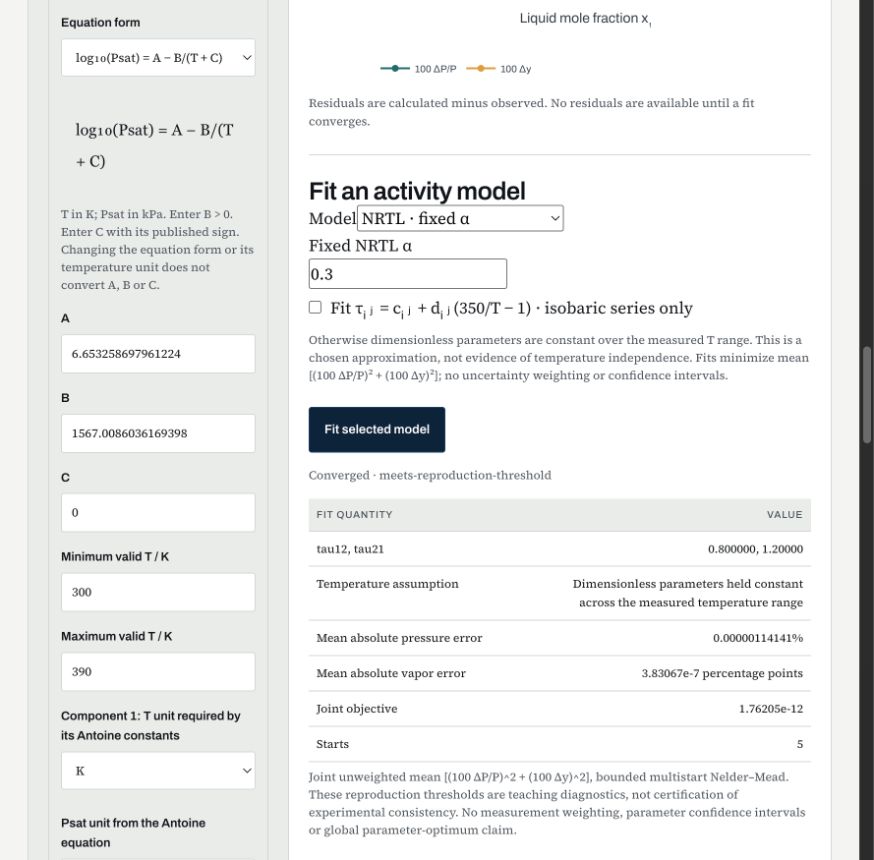
- Choose Model → NRTL · fixed α and set Fixed NRTL α = 0.3. Leave Fit τᵢⱼ = cᵢⱼ + dᵢⱼ(350/T − 1) unchecked. Keep the observations and property settings unchanged.
- Select Fit selected model again. Inspect the same residual view and export the NRTL JSON and residuals CSV under separate names.
| Full 19-point baseline | Mean absolute pressure error (%) | Mean absolute vapor error (percentage points) |
|---|---|---|
| Margules, 1 parameter | ≈ 1.14098 | ≈ 0.675676 |
| NRTL, fixed α = 0.3 | ≈ 1.14 × 10⁻⁶ | ≈ 3.83 × 10⁻⁷ |
Small final-digit differences are normal. For spreadsheet inspection, the exported y_error column is the raw mole-fraction difference ycalc − yobserved. Multiply it by 100 for percentage points. The pressure_error_percent column is already a percentage. A reported mean absolute error averages absolute residuals.
15–18 MINUTES · RESTORE A FILE AND RECALCULATE
5. Reopen one saved study
- Expand Study workspace · reopen and compare cases near the top of Lab 08. Set Label for the next captured case to a useful label, such as “Restored Margules”.
- Use Load studies or a comparison JSON to select the Margules study JSON downloaded earlier. Select its Restore [case label] button.
- Check the restored data, units, constants and model controls. Select Validate & inspect data →, followed by Fit selected model. Inspect the fresh errors and compare them with the saved result.
18–20 MINUTES · STATE WHAT YOU HAVE SHOWN
6. Explain the evidence
Finding: NRTL reproduces these synthetic training observations more closely than one-parameter Margules. Report both metrics with their units.
Limitation: NRTL generated these observations, so close recovery is expected. A low training error does not establish thermodynamic consistency, real-fluid property accuracy or prediction on new observations.
- Computation: your hand/Excel calculation agrees with the Lab for the chosen row.
- Properties: real-fluid Psat values need comparison with independent measurements or a suitable reference at the same temperature.
- Consistency: use an applicable thermodynamic diagnostic and report its assumptions. Missing composition endpoints prevent a full-area verdict here.
- Prediction: test observations excluded from fitting within a justified model and property range.
For its isothermal diagnostics, Lab 08 neglects excess-volume pressure effects. An isobaric differential verdict also requires independent excess-enthalpy data. The quick guide explains these distinctions and further troubleshooting.
Completed demonstration files
The workflow was checked in desktop Excel and Lab 08: export the active worksheet, import all 19 points, compare both models, then load the saved JSON files and validate/refit each model. The Excel-exported CSV preserves every numeric value in the supplied data.
CSV exported from Excel · Validated baseline JSON
| Example model | Reopen the setup | Inspect residuals |
|---|---|---|
| Margules, 1 parameter | Study JSON | Residuals CSV |
| NRTL, α = 0.3 | Study JSON | Residuals CSV |
These are synthetic worked examples, not student submissions. Practice exporting your own files first. Import one study at a time after entering a descriptive case label. Refit after restoring.
See the restored NRTL result
Completion checklist
- I know whether I used the supplied CSV or exported the active VLE_data worksheet myself.
- I selected that CSV in the Lab, checked its units and properties, and validated all 19 observations.
- I checked row 11 and compared γ with EXP(ln γ).
- I saved a baseline JSON and separate study JSON/residual CSV files for both models.
- I reopened an actual saved JSON, restored its inputs, and validated/refitted it.
- I can state a numerical finding and distinguish fitting from validation.
This is a practice checklist, not a new attendance task. Keep your files and corrections with the original worksheet. If your result differs, retain the study JSON and the exact warning so the same setup can be inspected.